The Defaults Your ISP Doesn't Advertise: Five Router Settings That Quietly Shape UK IPTV
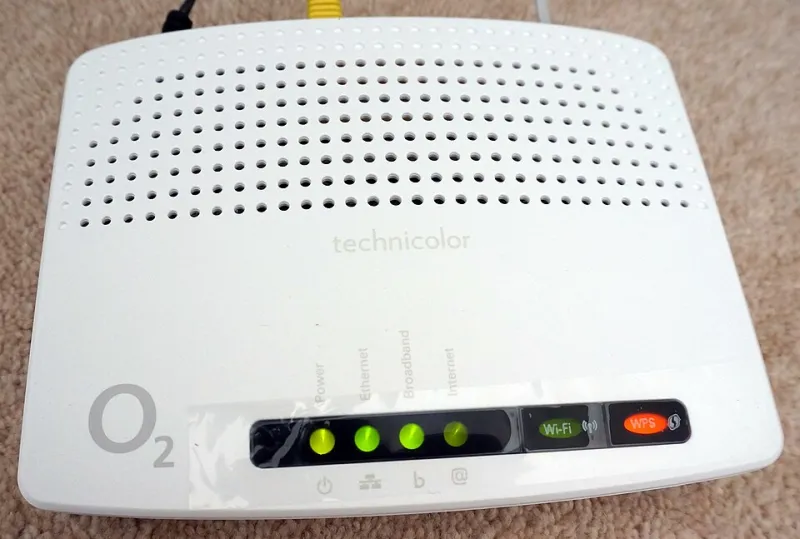
Photo: Ken218, CC BY-SA 3.0, via Wikimedia Commons
There is a point in every IPTV troubleshooting session where the obvious things are done. The box has been restarted. The app has been reinstalled. The broadband speed test looks respectable. Yet the stream still hiccups at 8:59pm, or the guide takes an age to populate, or one room buffers while another is fine.
That is when people start digging into router settings. It can feel like opening the bonnet of a car you do not understand. The good news is that most UK ISP routers hide a handful of settings that matter more than the rest. None of them are magic. None of them will fix a bad provider. But they can explain why a perfectly decent IPTV setup behaves like a moody teenager.
First, a two-minute safety note
Before changing anything, log in to your router admin page and take photos of the current settings. The address is usually on a sticker on the router, often something like 192.168.1.1. Do not touch anything labelled WAN, broadband username, or fibre connection unless you know exactly what it does. Change one setting at a time. Reboot only when the router asks you to. If something breaks, put it back.
Also, not every UK ISP router exposes every setting. BT, Sky, Virgin Media, TalkTalk, Vodafone, and EE all use different firmware, and some hide the interesting bits behind an app or a support call. That is normal. Work with what you have.
1. IGMP snooping: the multicast traffic cop
IPTV live TV often uses multicast, which is a bit like one broadcast being shared across the network rather than sent separately to every device. IGMP snooping is the router feature that keeps track of which devices actually want that multicast stream. Without it, the router may flood traffic to ports that do not need it, wasting Wi-Fi airtime and making the whole network feel congested.
On many ISP routers it is on by default. On some it is off, or it is on but buggy with certain multicast streams. If your live TV stutters while on-demand streaming is fine, this is worth checking. Look for IGMP snooping in the advanced or LAN settings. If you have an ISP-managed TV box, changing it can break that service, so be careful. For app-based IPTV, the usual goal is simply to make sure unnecessary multicast flooding is not happening.
2. Band steering: the friendly push that goes wrong
Band steering uses one Wi-Fi name for both 2.4GHz and 5GHz and lets the router decide which band a device should use. In theory, your streaming box gets pushed to the faster 5GHz band. In practice, some devices cling to 2.4GHz like a limpet, and the router does not always notice.
If your main IPTV box is on Wi-Fi and the picture is unstable, check which band it is actually using. Some routers let you split the bands into two separate names, for example adding -5G to the faster one. Then you can connect the box to 5GHz deliberately. This is not about blaming the router for everything. It is about removing the guesswork.
3. QoS: the traffic priority list
Quality of Service, or QoS, is the router's attempt to decide which traffic matters most. Many ISP defaults are tuned for general browsing and video calls, not for a 4K football stream while someone else is downloading a game update. If your router supports device priority, put the main streaming box at the top. If it supports traffic categories, prioritise video streaming rather than trying to prioritise everything.
Do not set every device to high priority. That is the same as setting none of them. And do not expect QoS to create bandwidth that is not there. It can only organise what you have.
4. DNS: small delay, visible annoyance
DNS is the internet's address book. A slow DNS server does not usually cause mid-stream buffering, because the stream is already connected. It can make apps slower to open, EPG artwork slower to load, and channel switching feel clunky. Some ISP DNS servers are fine. Some are not.
If you want to test a different DNS, use a reputable provider and enter the addresses in the router's internet or DHCP settings. Cloudflare and Google are common choices. Do not expect a miracle. Do expect app menus to feel a little snappier if your old DNS was sluggish.
5. Multicast handling and IGMP proxy
This is the setting that scares people. Multicast handling, IGMP proxy, and IGMP version options control how the router passes multicast traffic between your devices and the wider network. Some routers have an IPTV profile or a dedicated LAN port for a provider's TV service. If you use that service, leave it alone. If you use an app-based IPTV subscription, you generally want the router to handle multicast sensibly without flooding the network.
If your router has an IGMP version setting, do not change it randomly. Note what it is, test one alternative only if you have a specific problem, and put it back if nothing improves. This is not a knob to twiddle for fun.
A sensible order for tonight
Start with DNS and band steering because they are low-risk and easy to reverse. Then look at QoS and give the main box priority. Check IGMP snooping only if live TV is the specific problem. Leave multicast proxy and IGMP version alone unless you have a clear reason and a note of the original settings.
After each change, run the same test: open the app, load the guide, play a live channel for ten minutes, and switch channels a few times. One change at a time. If nothing improves, revert it. A tidy router is better than a router full of hopeful tweaks.
And if the provider's stream is unstable on Ethernet with a clean router, no secret setting will save it. At that point, the investigation has done its job: the router is not the villain.