When a Good Telly Meets a New Stick: Diagnosing HDMI Black Screens Without Panic
There is a very specific UK living-room scene that plays out more often than it should. A perfectly respectable telly, maybe a decade old but still sharp enough for the kitchen or spare room, gets a new streaming stick plugged into the back. For a week it behaves. Then one evening the screen goes black, the TV flashes 'no signal', and someone in the house says the words nobody wants to hear: 'the telly's gone'.
Usually, it hasn't. What has gone is the conversation between the two devices. HDMI is not just a pipe; it is a negotiation. The TV tells the box what it can display, the box tells the TV what it wants to send, and both agree on copy protection before anything appears. When that handshake fails, you get a black screen, a flicker, a random dropout, or a message about an unsupported signal. The panel can be fine. The stick can be fine. The agreement between them is the problem.
First, work out what kind of black screen you have
Not all black screens are the same, and the difference matters. If you can still see the TV's own menus, input labels or settings screen, then the TV is alive and the issue sits somewhere between the HDMI port and the device. If the TV shows nothing at all, including its own menu, you are looking at a power, backlight or panel issue rather than a handshake.
Next, watch when the picture disappears. A black screen from the moment you switch to the input points to a basic handshake or cable problem. A picture that appears, then drops the instant you open a film or a live channel, often points to HDCP, the copy-protection layer that sits on top of HDMI. If only one app fails while the home screen and other apps are fine, suspect the app or the stream before you suspect the cable.
The five-minute reset that actually means something
Most people unplug the box, plug it back in and hope. That is not quite enough. Try this order instead: turn the TV on first, unplug the streaming device at the wall rather than leaving it in standby, remove and refit the HDMI cable at both ends, select the correct input on the TV, then power the streaming device back up. Give it a full minute. Some older TVs are slow to re-read the capabilities of a new device, and a proper cold start forces a fresh introduction.
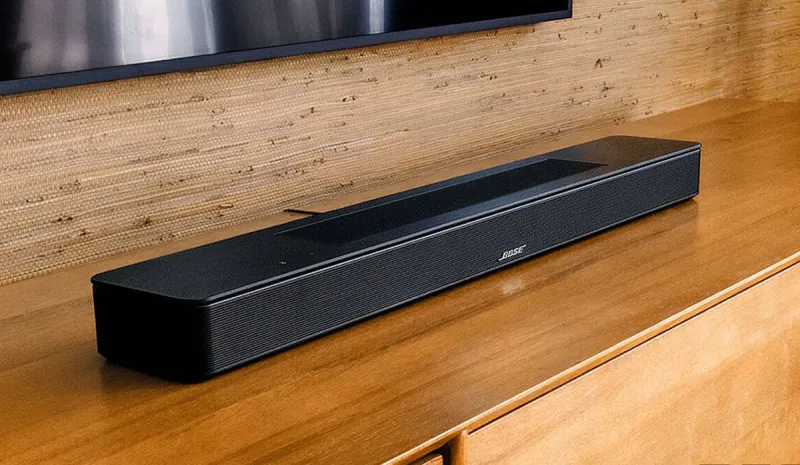
While you are back there, move the cable to a different HDMI port. On older TVs, one port may be ARC, MHL or simply fussier than the others. Avoid the front-panel socket if there is one; it is often an afterthought. If you have a soundbar or AV receiver in the chain, take it out for now and connect the streaming device straight to the TV. Soundbars are useful, but they can pass along confusing information about what the TV can handle.
Cables from the drawer are not all equal
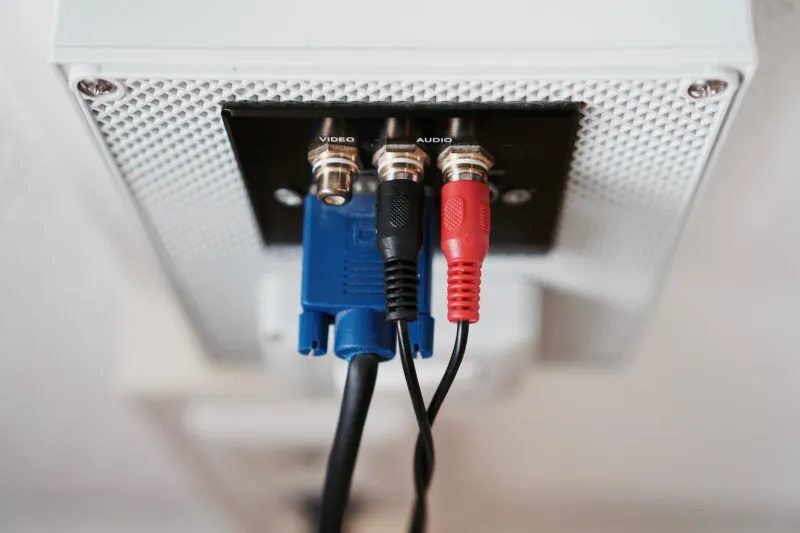
That HDMI cable you found behind the sofa may have worked with a DVD player, but a modern streaming stick can ask more of it. Swap in a known-good High Speed or Ultra High Speed cable, keep it short, and make sure both plugs are fully seated. Do not spend silly money on gold-plated marketing; do spend a little on a cable that is certified and not visibly strained where the TV is wall-mounted.
If the old cable is very long, coiled tightly or has been bent hard behind furniture, try a shorter one before doing anything else. A cable that is marginal can work for months and then fail when a device updates its output settings. That is not the TV being dramatic. It is the cable finally being asked to do something it cannot manage reliably.
Check the settings on both ends
A new stick often tries to be clever. It may default to 4K, HDR or Dolby Vision because it assumes the TV is modern. An older 1080p panel cannot display that, and some devices handle the refusal badly. Go into the streaming device's display settings and set it to 1080p, match the refresh rate to the UK's 50Hz for broadcast apps where possible, and turn off HDR or Dolby Vision if those options exist. You can always raise the settings later once you have a stable picture.
On the TV side, look for settings labelled HDMI deep colour, UHD colour, enhanced format or something similar. Try toggling them. On some older sets, leaving enhanced mode on causes a black screen with certain devices; on others, turning it on is the only way to get a full picture. Change one thing at a time so you know what worked.
When HDCP is the likely culprit
If the menu appears but protected content goes black, or you get a message about an unsupported display, HDCP is a strong suspect. Newer devices expect HDCP 2.2; older TVs may only offer HDCP 1.4. Some apps and services are stricter than others, and a device that handles one app perfectly can stumble on another.
Try a direct connection with no soundbar, a certified cable and a different HDMI port. If the TV has more than one port, one may be newer or more compliant than the rest. Lowering the output resolution is worth a try, though it will not always satisfy a strict HDCP check.
This is also where cheap HDMI splitters enter the conversation. A powered splitter can sometimes stabilise the handshake in a chain, particularly when a soundbar or capture device is muddying the signal. It is not a magic cure, and it is not a licence to bypass copy protection. Treat it as a diagnostic experiment, buy from somewhere with a returns policy, and do not rely on a no-name splitter as a permanent fix. If you have to add three boxes to make one telly work, the setup is telling you something.
The honest retirement calculation
There comes a point where the maths stops working. If the TV is well over a decade old, has only early HDMI ports, cannot be updated, and fails with more than one modern device, a cheap splitter is false economy. A basic 1080p set or a small monitor may be the calmer choice, especially if the old panel is in a spare room and you are forever swapping cables to keep it alive.
That said, do not bin a good panel because one app is grumpy. Test another device on the same TV and the same device on another TV. If the stick works elsewhere and the TV works with an older box, you are dealing with compatibility rather than death. If multiple devices fail across multiple ports, and the TV's own menus are unstable, it is probably time to retire it. In the UK, take it to a local council recycling centre or a retailer that handles electrical waste rather than leaving it on the pavement.
A short checklist before you buy anything
- Cold-start the TV and the streaming device in the right order.
- Try a different HDMI port and a known-good cable.
- Remove soundbars and receivers from the chain.
- Set the device to 1080p and SDR on an older TV.
- Toggle HDMI enhanced or deep colour settings one at a time.
- Test protected content to see whether HDCP is involved.
- Only then consider a powered splitter, and only with a returns option.
The black screen is rarely a mystery once you stop treating the TV and the stick as one unit. They are two devices trying to agree, and most of the time a short cable, a different port and a more modest output setting are enough to get the conversation going again.