The Scoreline You Can't See: Why Your TV Is Cropping UK IPTV at the Edges
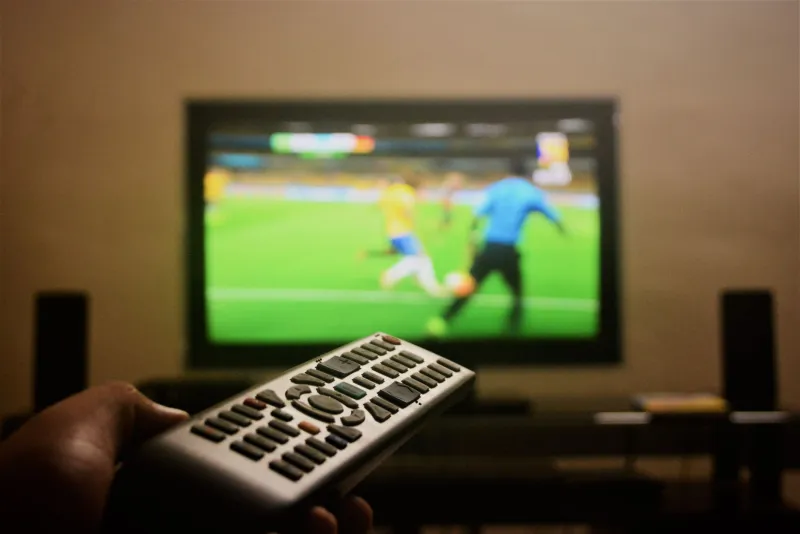
You settle down for the Saturday afternoon match, the stream loads in what looks like crisp HD, and then you notice something annoying: the scoreboard is jammed against the top-left corner, the bottom ticker is half missing, and the subtitles are threatening to slide off the screen entirely. The natural reaction is to blame the IPTV service. Fair enough. But before you fire off an angry message, there's a setting on your telly that deserves a look first.
The telly is zooming, not the stream
Overscan is a hangover from the old broadcast days. televisions used to expect a bit of messy data around the edges of the picture, so they cropped a few per cent off every side and stretched what was left to fill the panel. On a modern IPTV box outputting a precise 1920x1080 or 3840x2160 signal, that behaviour is about as welcome as a dial-up tone during a film.
When overscan is switched on, your TV is effectively taking a perfectly good image and zooming in slightly. The centre of the picture looks fine. The edges disappear. Football scorelines, news tickers, channel logos, subtitle text and the little 'press red' prompts all live near those edges, which is why they're the first casualties.
This is not the streaming service failing to send the full frame. It's the television deciding it knows better.
A five-minute edge test you can actually do
The quickest way to prove it is to stop watching normal telly for a minute and give the screen something with known edges. You don't need calibration software. A simple test image will do.
Download a plain 1920x1080 PNG with a thin white border and a few crosshair marks near the corners. Put it on a USB stick, plug it into the TV, and open it in the photo viewer. If the white border is visible all the way around, your TV is mapping the image properly. If the border is missing on any side, or the crosshairs are clipped, overscan is doing its thing.
No USB stick to hand? Use a full-screen test pattern video on the TV's own YouTube app, or pause a news channel when the ticker is running along the bottom. The ticker should sit comfortably inside the frame, not have its first letters chopped off. A football scoreboard is another good tell: the team names and clock should not be pressed right up against the bezel.
Once you've seen the clipping, you can stop wondering whether your IPTV provider is sending a dodgy feed. The box may be innocent.
What the setting is called on your telly
TV menus are a naming lottery. The feature is broadly the same, but every brand has its own label, and the exact path moves around between model years. Look for the option that sounds like 'show the whole picture without zooming'.
On Samsung sets, head to Picture, then Picture Size Settings. You're looking for Fit to Screen or, on older models, Just Scan. If the TV is set to 16:9 and the edges are vanishing, that's your culprit.
On LG, open Picture, then Aspect Ratio. Choose Just Scan or Original rather than 16:9. LG has used both names over the years, so don't panic if yours says something slightly different.
On Sony, go to Picture settings, then Screen, then Display Area. Select Full Pixel or +1. Sony also has a Wide Mode setting, which should normally be set to Full.
On Panasonic, look under Picture, then Screen Settings. Switch 16:9 Overscan to Off, and check that the Screen Format is set to Full.
On Hisense and TCL, the useful option is often called Direct, Point to Point or Native. On Philips, look for Unscaled or Original under Picture Format. On Toshiba, try Native or Dot by Dot.
The names vary, but the goal doesn't: one source pixel should map to one screen pixel, with nothing lopped off the sides.
Don't fix one input and forget the rest
Here's the bit that catches people out. Picture settings are often stored per input. You might sort out HDMI 1 where your main IPTV box lives, then wonder why the spare Fire Stick on HDMI 2 still looks cropped. Go through each HDMI input you actually use and apply the same fix.
It's also worth checking the box's own output resolution. If the IPTV box is set to 1080p and the TV is a 4K model, the TV should still map it correctly, but a mismatch combined with a zoomed picture mode can make things worse. Set the box to Auto or to the TV's native resolution, then set the TV input to its unscaled mode.
When it really is the app, not the telly
Overscan is the first suspect, not the only one. If the TV's own menus and a Freeview channel look fine, but one particular IPTV app is clipping the edges, the app's player may have its own aspect ratio setting. Look for a zoom or stretch icon inside the player and set it to Original, Fit or 100%.
If the clipping only happens on one channel, that's likely a source problem. If it happens on every channel, every app and every HDMI input, go back to the TV's picture size menu. That's almost always overscan.
The fix is boring, which is the point
Nobody buys a telly to spend Saturday afternoon in the picture settings menu. But a two-minute change can rescue the scoreline, the news ticker and every subtitle that's been sliding off the bottom of the screen. Your IPTV service might be perfectly fine. Your television has just been doing a little too much cropping.
Fix the input, check the other HDMI ports, and then get back to the match. If the edges still look wrong after that, you've earned the right to blame the stream.